Automation depends on the network more than most people expect. Lights, locks, thermostats, cameras, and hubs all pass commands and status updates through it, so a weak signal in the garage or a router that hands out new addresses after a restart can make a well-designed system feel unreliable. This article explains what a dependable network looks like for a smart home or small business, and how we approach it at AppxSmart, by SwayPC.
Why does the network matter so much for automation?
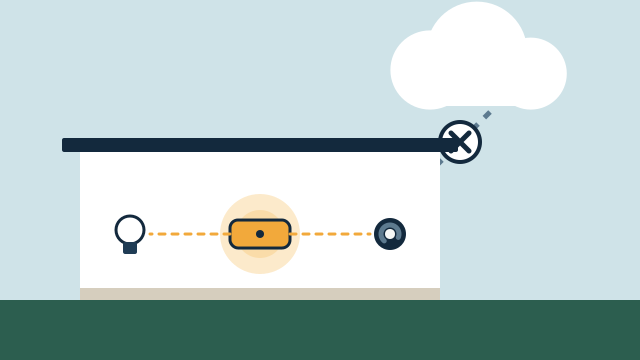
Every automation is a chain. A motion sensor reports to a hub, the hub decides what to do, and the command goes out to the lights, often over Wi-Fi or a separate radio mesh. If any link in that chain is slow or drops out, the light comes on late or not at all, and it looks like the light or the hub failed.
The network matters in three different ways:
- Inside the property. Devices need a steady connection to the hub, controller, or each other. This part matters even for systems that run locally.
- To the internet. Remote access, notifications, voice assistants, and cloud-only integrations usually need internet service. Our article on local control vs. cloud automation explains which functions can keep working without it.
- Over time. Firmware updates, new devices, and changed passwords all touch the network. A network that nobody documents tends to drift until something breaks.
Illustrative example: A homeowner in Hollywood reports that the “goodnight” scene works most nights but sometimes leaves the garage light on and the back door unlocked. The hub logs show those two devices were offline at the time. Both sit at the edge of the Wi-Fi coverage, and the router’s single unit is in a front office. Adding a wired access point near the kitchen fixes the scene without changing any automation.
How much coverage do you need, and where?
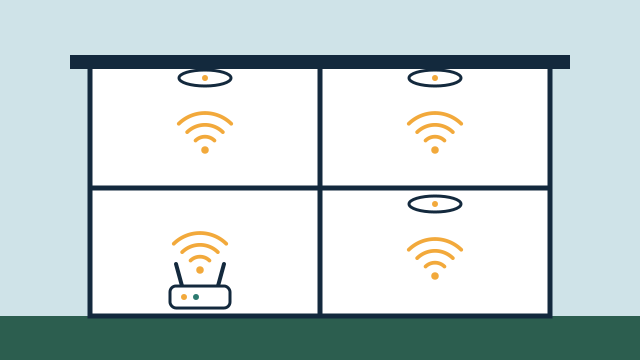
Plan coverage for where devices are installed, not only where people use phones. Smart home equipment often lives in the least convenient places for Wi-Fi: the garage, pool equipment pad, exterior gates, docks, utility closets, and the far side of the patio.
Google’s placement guidance for its mesh systems gives useful general rules: put the main unit in a central, elevated, open spot; keep each additional point no more than two rooms away from another point; and avoid placing points where walls, doors, or objects block the signal. Building materials matter too. Concrete block walls, common in South Florida homes, and some window coatings can weaken signals between rooms and to the outdoors, so we measure signal at the actual device locations instead of guessing.
| Approach | Good fit | Watch for |
|---|---|---|
| Single router | Small condos and apartments | Dead spots at the edges; garages and patios often out of reach |
| Mesh system, wireless backhaul | Homes without Ethernet runs | Capacity drops with each wireless hop; placement is critical |
| Mesh system, wired backhaul | Homes with some Ethernet runs | Requires cable to each unit; follow the maker’s wiring rules |
| Ceiling or wall access points on Ethernet | Larger homes, offices, retail, hospitality | Needs cable runs and a switch, often with PoE power |
| Outdoor-rated access point | Pool areas, docks, outbuildings | Weather exposure, salt air, mounting height |
Why does wired backhaul help?
Backhaul is the connection between your main router and each additional mesh unit or access point. When that connection runs over Ethernet, the wireless radios are free to serve devices, and performance at the far units is usually more consistent.
Google’s help center, for example, describes how Nest Wifi Pro and Google Wifi units can be connected with Ethernet, recommends at least CAT5e cable, and says to connect the extra points downstream of the main router. It also recommends an unmanaged switch, or a managed switch with Spanning Tree Protocol disabled, to avoid routing and loop problems with those systems. Other brands have their own rules, which is a good reason to follow the specific manufacturer’s documentation.
In existing homes, we look for cable paths through attics, closets, and existing low-voltage runs. In new construction or renovations, running Ethernet to likely access point locations, TV areas, and camera positions is one of the least expensive ways to improve reliability later. Builders and designers can read more in our guide to automation planning for builders and designers.
Should smart devices use 2.4 GHz or 5 GHz?
Many smart home devices only support 2.4 GHz Wi-Fi. That band reaches farther and passes through walls better than 5 GHz, but it has fewer channels and more congestion. Faster devices like laptops, TVs, and many cameras benefit from 5 GHz (and 6 GHz where supported).
| Band | Strengths | Limitations | Typical devices |
|---|---|---|---|
| 2.4 GHz | Longer range, better through walls | Fewer non-overlapping channels, more interference | Smart plugs, many locks and sensors, older devices |
| 5 GHz | More capacity, less congestion | Shorter range | Phones, laptops, streaming devices, many cameras |
| 6 GHz | Most capacity where supported | Shortest range; newer devices only | Recent phones and laptops |
Two practical issues come up often:
- Joining combined networks. Some routers broadcast both bands under one name. Most devices handle that well, but some 2.4 GHz-only devices struggle to join during setup. A dedicated 2.4 GHz network name for smart devices can solve it.
- Sharing the band with Zigbee and Thread. These low-power mesh radios also use 2.4 GHz. Home Assistant’s documentation on its Zigbee integration notes that Wi-Fi frequency ranges can overlap with Zigbee, and recommends keeping the Zigbee coordinator away from Wi-Fi routers and access points, choosing Wi-Fi and Zigbee channels that avoid each other, and avoiding USB 3.0 ports near the coordinator. We plan those channels together instead of letting each system pick on its own.
Should smart devices be on a separate network?
For many properties, putting smart devices on their own network is a sensible step. It limits what a compromised or poorly maintained device can reach, keeps guest and staff devices apart from yours, and makes troubleshooting easier.
Options range from simple to advanced:
- Guest network. The FTC recommends a separate guest network with its own name and password for visitors. Most routers support this.
- Dedicated smart device network. A separate network name for smart devices, often limited to 2.4 GHz.
- VLANs with firewall rules. A VLAN (virtual LAN) separates traffic on the same physical equipment. With rules between networks, you control which devices can talk to which. This needs business-grade or prosumer equipment and careful configuration.
Separation has trade-offs. Casting to TVs, AirPlay, some local discovery, and some app control rely on devices finding each other on the same network. Matter and HomeKit devices, and hubs that discover devices automatically, can also be affected. We test those functions after any network separation, and sometimes the right answer for a home is simpler segmentation rather than more.
Whatever the layout, basic hardening still applies. CISA and the FTC both recommend changing default router credentials, using WPA3 (or WPA2 where WPA3 isn’t available), keeping router firmware updated, and turning off features you don’t need such as WPS, UPnP, and remote management.
What happens when the power goes out?
An uninterruptible power supply (UPS) on the modem, router, network switch, and automation hub keeps the network running through short outages and gives equipment time to shut down cleanly during longer ones. It provides minutes to hours, depending on its size and the load, not days.
Some realities to plan for, especially during hurricane season (June 1 to November 30):
- If the internet provider’s equipment outside the property loses power, your internet goes down even if your router is on a UPS. Local automations can keep running if the platform and devices support it; remote access and notifications usually stop.
- After power returns, devices reconnect in no particular order. Hubs and integrations that depend on fixed addresses can lose track of devices unless addresses are reserved in the router.
- Some routers support a cellular backup connection. It can help keep notifications and remote access available, with data limits and ongoing cost to consider.
For second homes that sit empty during storms, we discuss what the owner wants to know remotely and design the network and power plan around that.
How do we diagnose network problems?
We diagnose from the symptom backward and change one thing at a time. Swapping several devices at once often hides the real cause and makes the problem come back later.
- Write down the pattern. Which devices, which times, and whether it follows restarts, storms, or new equipment.
- Map the devices. Know which access point or hub each device connects to and its IP address.
- Measure signal at the device, not at the router.
- Check channels and interference, including Zigbee and Thread channels near Wi-Fi.
- Confirm addresses. Reserve IP addresses for hubs, cameras, and devices that integrations reach by address.
- Check firmware on the router, access points, and hub.
- Test with a wired connection where possible to separate Wi-Fi issues from device issues.
- Record the fix and the final settings so the next person doesn’t start from zero.
Where SwayPC’s background fits
AppxSmart is provided by SwayPC, whose background is networking and technical support. That shapes how we work: we look at the network during every automation assessment, we prefer wired connections where they’re practical, and we document network settings as part of the handover. When a smart device misbehaves, the network is one of the first places we check.
How AppxSmart can help
We assess your current router, coverage, and devices, then recommend changes sized to your property: better placement, wired backhaul, access points, a separate network for smart devices, or backup power. See our Wi-Fi and networking service for details, and our guide to maintaining and troubleshooting automation for keeping things healthy over time. When you’re ready, request a free consultation and we’ll contact you as soon as possible.
Questions people ask
Do I need to replace my internet provider's router?
Not always. Some provider routers work well for smaller homes. We assess coverage, device count, and features such as address reservations and separate networks first. If the provider's equipment can't support what the plan needs, we may recommend placing your own router or access points behind it.
Is mesh Wi-Fi good enough for a smart home?
Often, yes, when the units are well placed and ideally connected by Ethernet. Mesh units that relay everything wirelessly lose capacity at each hop, which shows up first with cameras and in far corners of the property.
Should my smart devices be on a separate network?
For many properties it's a sensible step, especially with many devices, guests, or staff. It needs careful setup, because some features such as casting, local discovery, and app control can depend on devices seeing each other across networks.